The Working Researcher’s AI Toolkit · Day 1 of 6
Six short, practical guides to using AI in a research career, one a day this week. Every guide has copy-and-paste prompts that work in ChatGPT, Claude, Gemini or Copilot.
Most researchers start the day by checking six places: inbox, calendar, journal alerts, Slack or Teams, job boards and the news. An AI morning briefing puts them on one page before you have finished your first coffee. And you don’t need to hand over your inbox to get one.
This guide covers three levels of briefing. At the first, the AI sees only what you paste into it. At the second, it can read your email and calendar. At the third, it runs on a schedule and the briefing is waiting when you wake up. Each level has prompts you can copy, and you can stop at whichever one you are comfortable with. Plenty of people never go past the first.
Today’s guide also explains how these tools work underneath: models, plans, connectors and scheduled tasks. The rest of the series builds on that, so it is worth five minutes even if a briefing is not for you. If you lead a group, our Free Tools & Resources for New Research Leaders guide has a version of the briefing built for lab leaders.
In brief
An AI morning briefing gathers your meetings, the emails that need a reply, upcoming deadlines, new papers, funding calls and jobs into one short summary. You can build one for free with ChatGPT, Claude, Gemini or your university’s Microsoft Copilot. Choose how much access you give it: none at all, read-only access to your email and calendar, or a version that runs automatically every morning. The real value comes from a personal watch list of the papers, people, grant awards, funding calls, jobs, methods and institutional news that matter to you now, which you update as your career moves on. Start with the tool your university has approved, switch off training on your chats, and check the first fortnight’s briefings against your real inbox.
On this page
Start with what you’ll need, then how these tools work if the jargon is new to you. The heart of the guide is the three levels of briefing: paste-in, connected and automatic. Then build your watch list, the part that makes a briefing yours. After that come a worked example, where to be careful, five things to try this week and common questions.
What you’ll need
You can do all of this for free. Paying mainly buys you the automatic level, and a stronger model for the harder thinking. Prices and features below are as of November 2026, and they change often.
| Option | Cost | Reads your email and calendar? | Runs on a schedule? |
|---|---|---|---|
| Microsoft Copilot Chat with your university login |
Free with most university Microsoft 365 accounts | Yes, inside Outlook, for your university inbox and calendar | No |
| Google Gemini | Free AI Plus £4.49 a month, AI Pro £18.99 a month | Yes, Gmail and Google Calendar on a personal Google account. A university Google account only if IT has switched it on | Yes, rolling out to personal accounts, up to 10 schedules |
| ChatGPT | Free Go £7 a month, Plus US$20 a month | Gmail, Google Calendar and Outlook on Plus and above | Go (up to 3 tasks) and Plus (up to 5) |
| Claude | Free Pro US$20 a month, or US$17 a month paid yearly | Gmail and Google Calendar connectors on all plans. Outlook through Claude for Microsoft 365 on Pro | Pro and above |
None of them needs a download, because they all work in a web browser. The free desktop and phone apps are worth having, though. Your chats, connectors and scheduled tasks belong to your account rather than your device. You can set up a briefing on your laptop, read it on your phone on the train and carry on the same conversation back at your desk.
If you only try one thing
Try your university’s Copilot first. It is free and already approved for university data, and it can see the inbox you actually work from. When you sign in with your university account, look for a green shield or the word Protected. That tells you your university’s data protection agreement with Microsoft applies.
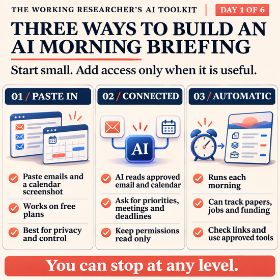
From a simple daily prompt to an automated briefing, discover three ways to make AI work around your research day.
How these tools work, in plain terms
Apps and models
ChatGPT, Claude, Gemini and Copilot are apps. Behind each one sits a family of models, the engines that do the work. There are usually two kinds. Fast models are good for quick answers and summaries. Larger reasoning models are slower and better at anything that needs judgement, such as critiquing an argument or planning an analysis.
Free plans give you the faster models, with a cap that resets every few hours. At the time of writing, ChatGPT gives free and Go users GPT-6 Luna, and Plus gets the larger GPT-6 Sol. Claude gives free users Sonnet and Haiku, and Pro adds Opus, its strongest everyday model. Gemini’s free plan uses its fast model, and the top model needs AI Pro. Copilot picks a model for you.
Our take: for an AI morning briefing, any of them will do. It is a summarising job, and the fast models are fine at it. Choose the one that can reach the inbox you actually use. Later guides in the series come back to which model suits which job.
What paying gets you
Plans fall into four bands. There is free. Then about £5 to £7 a month (Gemini AI Plus, ChatGPT Go), then about £18 to £20 a month (Gemini AI Pro, ChatGPT Plus, Claude Pro). Above those are power plans at £80 to several hundred pounds a month, which very few researchers need. The £20 tier is where most apps give you scheduled tasks, the stronger models and room for longer documents. Check your university’s rules before you pay for one yourself, because some don’t allow personal subscriptions to be used for university work.
Connectors
A connector is a permission slip. You sign in to Google or Microsoft from inside the AI app and tick what it may see. After that, when you ask a question that needs your calendar, it can look. Without a connector it can only see what you paste in. Three things are worth knowing:
- It only looks when asked. A connector fetches what a task needs. It is not copying your whole inbox somewhere.
- Some can act as well as read. Claude, ChatGPT and Gemini can now draft and send emails or create calendar events. By default they ask you before each action, so leave that switched on.
- University accounts are different. Your IT team decides whether your work Google or Microsoft account can be connected to an outside AI. If the connect button fails, that is usually why. It is a decision, not a bug.
You can disconnect at any time from the app’s settings, under Connectors or Connected apps.
Scheduled tasks
A scheduled task is a saved prompt that runs at a time you choose, such as 7am every weekday. The answer waits for you as a notification or a new chat. ChatGPT and Claude call them scheduled tasks, and Gemini calls them scheduled actions. To do anything useful they need web search switched on, a connector, or both.
Do this first: stop it training on your chats
On personal plans, most of these companies can use your conversations to train future models unless you switch it off. Do that before you connect anything.
- ChatGPT: Settings, Data controls, then turn off Improve the model for everyone.
- Claude: Settings, Privacy, then turn off Help improve Claude.
- Gemini: the Activity setting in Gemini’s settings controls whether your chats are kept and used.
University versions, such as Copilot Chat signed in with your university account, are covered by your institution’s agreement instead.
Three levels of AI morning briefing
Pick the level you are comfortable with. You can move up later.
Level 1
Paste-in
The AI sees: only what you paste
Works on: every free plan
Takes: two minutes a morning
Level 2
Connected
The AI sees: your email and calendar, read-only
Works on: free Copilot, Gemini and Claude; ChatGPT Plus
Takes: one prompt a morning
Level 3
Automatic
The AI sees: the web, plus your accounts if you choose
Works on: Gemini, ChatGPT Go or Plus, Claude Pro
Takes: nothing, once it is set up
Level 1: Paste-in (nothing connected)
The AI sees only what you give it. Take a screenshot of today’s calendar, and copy the senders and subject lines of your unread emails. In Outlook or Gmail you can select the list and copy it. Paste both into any free AI with the prompt below. It takes about two minutes, works on every plan, and nothing leaves your control except what you pasted.
Leave out the body of anything sensitive, such as HR, health or a student’s circumstances. The subject line is usually enough for the AI to place it.
Copy this prompt · Level 1
You are helping me plan my working day. I am a  working on [topic].

Below is (1) a screenshot of today's calendar and (2) a list of unread emails with sender and subject.

Give me a briefing in this order, in plain text, no longer than one screen:
1. Today at a glance: meetings in time order, with any clashes or back-to-backs flagged.
2. Before each meeting: one line on what I should have ready, if it's obvious from the title.
3. Emails: group them as (a) needs a reply today, (b) needs a reply this week, (c) for information, (d) probably safe to ignore. Explain each “today” pick in a few words.
4. Deadlines you can see coming in the next 7 days.
5. Suggest one 90-minute block today for focused work, and say why that slot.

Rules: don't invent anything that isn't in what I've pasted. If something is unclear, say so instead of guessing.

[paste emails here, attach calendar screenshot]
Use the copy button in the top corner, or click once inside the box to select the whole prompt. Fill in the parts in square brackets.
Level 2: Connected (the AI reads your mail and calendar)
You connect your accounts once, then ask the same question every morning. This is where to switch it on in each app:
- Copilot (university Outlook): open Copilot in Outlook, or go to m365.cloud.microsoft and sign in with your university account. Since April 2026 the free Copilot Chat has gone from Word, Excel and PowerPoint, but it still works in Outlook with your inbox and calendar.
- Gemini: in Settings, open Connected apps and switch on Gmail and Google Calendar. You can also type @Gmail in a prompt.
- ChatGPT (Plus): Settings, then Apps (sometimes shown as Connectors), then connect Gmail, Google Calendar or Outlook.
- Claude: Settings, then Connectors, then connect Gmail and Google Calendar. In a chat, the + button lets you switch each one on or off.
Copy this prompt · Level 2
Using my connected email and calendar, give me my morning briefing for today.

1. Calendar: today's meetings in order, clashes flagged, and for each one a line on what to prepare. Check my inbox for any related papers or agendas and mention them.
2. Email from the last 24 hours: what needs a reply today, what can wait until this week, and what is for information only. Put people I work with closely ([names or roles, e.g. my supervisor, my PI, my co-authors]) first.
3. Anything with a deadline in the next 7 days, from email or calendar.
4. One protected 90-minute block for focused work, avoiding my meetings.

Rules:
- Do not send, reply to, accept, decline, archive or delete anything.
- If an email is about health, pay, performance, a complaint or someone's personal circumstances, don't summarise it. Just say “one sensitive email from [sender], open it yourself”.
- Give the sender and subject for every email you mention, so I can find it.
- If a section is empty, say “nothing today”.
Use the copy button in the top corner, or click once inside the box to select the whole prompt.
Our tip: give your alerts their own inbox
If connecting your main inbox feels like too much, set up a free Gmail address used only for subscriptions. Move your PubMed and Google Scholar alerts, journal table-of-contents emails, funder newsletters, job alerts and our own weekly bulletin to it. Then connect that address, and only that address, to the AI. You get a daily digest of everything new in your field, and the AI never goes near your work email.
Level 3: Automatic (it runs while you sleep)
Now you save the prompt as a scheduled task, set it for 7am on weekdays, and the briefing is waiting when you open your laptop or check your phone.
- Gemini: ask “every weekday at 7am, do the following” and it offers to schedule it. Manage your schedules under Settings, Scheduled actions. The feature is rolling out to personal accounts, so you may not have it yet, and university accounts need it switched on by IT.
- ChatGPT (Go or Plus): open Scheduled in the sidebar and create a task, or start your prompt with “Every weekday at 7am”.
- Claude (Pro): open Scheduled in the sidebar, choose New task, and either describe it to Claude or set it up yourself.
- Copilot Chat (free university version): has no scheduling. Keep the Level 2 prompt in a note and paste it each morning. If your university licenses Power Automate, it can send you a daily reminder to do it.
The automatic level is also where a world briefing comes in. It needs no access to your accounts at all, just web search, so it suits anyone who doesn’t want to connect anything.
Copy this prompt · Level 3 world briefing
Every weekday at 7am UK time, search the web and give me a research briefing for a [career stage] researcher working on [your topic, e.g. synaptic dysfunction in Alzheimer's disease] in the UK.

1. New papers and preprints from the last 24 hours (PubMed, bioRxiv, medRxiv) on [your topic, 2-3 keywords]. Up to five, each with a link and one sentence on why it matters. Prioritise work from [named labs or authors] and anything citing [your key paper, with DOI].
2. Funding: new or closing-soon calls relevant to [topic] from [funders, e.g. NIHR, UKRI/MRC, Alzheimer's Research UK, Alzheimer's Society, Wellcome].
3. Jobs: new [postdoc / research fellow / lecturer] posts in [field and region] on jobs.ac.uk, Nature Careers and EURAXESS.
4. Sector news: anything important from UK research policy or higher education this week.

Rules: link every item to its source. Never list a paper you cannot link to. If a section has nothing new, say so. Keep it to one screen.
Use the copy button in the top corner, or click once inside the box to select the whole prompt. On a Monday, ask for everything since Friday.
Make your AI morning briefing yours: build a watch list
Your meetings and unread emails look much the same as everyone else’s. What makes an AI morning briefing worth reading is the part that is specific to you, right now. That might be a paper from a group you are hoping to join, a fellowship you have just become eligible for, or a new method that could rescue a stuck chapter. The trick is to tell the AI exactly what to watch, rather than leaving it to guess what you mean by your field.
New papers
On your topic, from groups you follow, and anything that cites your own work.
People
Researchers you want to keep an eye on: collaborators, a PI you would like to work for, a rival group. Their new papers, talks, grants and moves.
Grant awards
Who has just been funded in your area. It shows where the money is going and who might be hiring soon.
Funding calls
Fellowships and grants you are eligible for at your career stage, with deadlines and the stage they are at.
Jobs
The roles and places you would move for, and the vacancy pages of the centres you most want to join.
New methods and tools
Protocols, assays, software packages and datasets that could change how you do your work.
Your institution
Staff news, internal funding rounds, training, seminars and policy changes from your university and department.
Conferences
Abstract deadlines, travel bursaries and early-bird registration for the meetings in your field.
Your topic in the news
Media coverage and policy debates you might be asked about, or could comment on.
Our tip: today’s grant awards are next year’s job adverts
When a funder announces a large award, the posts it pays for are usually advertised months later. Watching awards in your area gives you a head start: you can follow the group, meet them at a conference and be ready when the advert appears. In the UK, Gateway to Research lists UKRI awards and NIHR Funding and Awards lists NIHR ones. Charities announce theirs on their own news pages.
Let the AI interview you for your watch list
Most people find it hard to write down everything they care about in one go. So let the AI ask the questions, then paste the watch list it produces at the top of your briefing prompt.
Copy this prompt · Build my watch list
I want to set up a daily research briefing. Help me write a watch list of what it should look out for.

Interview me one question at a time. Cover: my research topic and methods; the papers, groups and people I want to keep an eye on; my career stage and what I'm working towards in the next 12 months; the funders and schemes I could apply to; the jobs and places I'd consider; any methods or tools I want to learn about; my institution and department; the conferences I go to.

When you have enough, write my watch list as a short block I can paste into a prompt, with a heading for each area and specific names, keywords and websites under each. Keep it under 250 words. Then suggest two things I haven't mentioned that someone at my stage usually wants to watch.
Use the copy button in the top corner, or click once inside the box to select the whole prompt.
Then swap the general wording in the Level 3 world briefing for your watch list, so the scheduled prompt starts: “Every weekday at 7am UK time, search the web for anything new on my watch list below…”. Ask it to give each area its own heading, and to say “nothing new” rather than padding a section out.
Your watch list should change as you do
What matters to you in the last year of a PhD is not what matters in your first year as a group leader. A watch list you wrote in January will be out of date by the summer, and a briefing full of things you no longer care about soon stops being read.
| Where you are | Worth adding to your watch list |
|---|---|
| Writing up a PhD | New papers you will need to cite before you submit, postdoc posts, travel bursaries, and your examiners’ recent work |
| Job hunting | Vacancy pages at target centres, recent grant awards, the PIs you would like to work for, and interview panels’ latest papers |
| Preparing a fellowship | Scheme deadlines and eligibility changes, recent awardees in your area, possible host institutions and mentors |
| Starting a group | Funding for equipment and studentships, institutional policy and HR news, and your team’s own publications |
Book ten minutes once a month to review it. Paste your watch list and a few recent briefings into the AI and use the prompt below. It is also worth updating straight away whenever something big changes: a new contract, a paper accepted, a fellowship deadline coming up.
Copy this prompt · Monthly watch list review
Here is my current watch list and some briefings from the last month.

Since I wrote it, this has changed: [e.g. my contract ends in June, I'm now applying for fellowships, I've started using spatial transcriptomics].

1. Which parts of the watch list keep turning up nothing useful? Suggest what to cut.
2. Given what has changed, what should I add? Be specific: names, schemes, websites, keywords.
3. Rewrite the watch list with your changes, still under 250 words.

[paste watch list] [paste a few briefings]
Use the copy button in the top corner, or click once inside the box to select the whole prompt.
Worked example: Sam’s two-part AI morning briefing
Sam is a made-up second-year postdoc working on sleep and amyloid. Her email and calendar are in university Outlook. Her university’s guidance says not to connect work accounts to outside AI tools, but it does approve Copilot. So she splits the job in two.
- The personal part, in Copilot (free and approved). Each morning she opens Copilot in Outlook and pastes the Level 2 prompt. It can see her university inbox and calendar, and the data stays inside the university’s agreement with Microsoft.
- The world part, in Gemini (free, on her personal account). A scheduled action at 7am runs the world briefing prompt with her watch list pasted in. Her list names the PIs she would like to work for next, the funders she can apply to, a new actigraphy method she wants to learn and her faculty’s internal funding page. It touches nothing but the public web.
This is the kind of thing her Gemini briefing returns. It is illustrative rather than a real output, and the papers are invented.
RESEARCH BRIEFING · Tuesday

New papers (3)
· [Preprint, medRxiv] Slow-wave sleep and plasma p-tau217 in 412 older adults. Relevant: uses the same actigraphy protocol as your 2025 paper. [link]
· [Paper, Brain] Glymphatic MRI markers after one night of sleep restriction. Small sample (n=24). Worth a look for your methods section. [link]
· [Paper, Sleep] Cites your key paper: argues the effect weakens after adjusting for apnoea. [link]

People you follow
· Dr L. Hart (on your list of PIs to work with) has a new preprint on sleep spindles and memory. [link]

Grant awards
· UKRI has funded a five-year sleep and dementia risk cohort in Cardiff. Posts are likely to be advertised in 2027. [link]

Funding
· Alzheimer's Society project grants: outline stage closes in 19 days. [link]

New methods
· Open-source R package for scoring actigraphy data, published with a validation study. [link]

Your institution
· Faculty pump-priming fund open to postdocs, closes 15 Jan. [link]

Jobs
· Research Fellow, sleep and neurodegeneration, Edinburgh. Closes 12 Dec. [link]

Sector news
· Nothing major today.
An illustrative example of a world briefing. The papers, people, award and job are invented.
It isn’t perfect. In the first week Sam found one paper link that went to the wrong article and one job that had already closed. She now spends 30 seconds opening links before she relies on anything. That still saves the 20 minutes she used to spend clicking through six tabs.
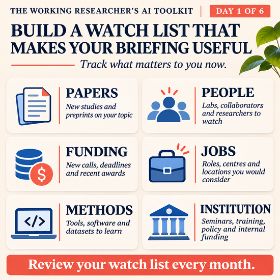
Make your AI briefing genuinely useful by tracking the papers, people, funding, opportunities and developments that matter to your research career.
Where to be careful
Check your university’s rules first
UCL, for example, tells staff not to put personal, confidential or research data into unapproved third-party AI tools, and to use approved ones such as Copilot where they can. Most UK universities say something similar. Search your intranet for “generative AI guidance”.
Read-only is enough
An AI morning briefing never needs to send, delete or accept anything. Say so in the prompt, and keep the app’s approve-each-action setting switched on.
Keep other people’s details out of personal tools
Your inbox holds other people’s information: students, participants and colleagues. That is the main reason to use the approved university tool for the personal part of your briefing.
Treat it as a draft
Summaries miss things, and links are sometimes wrong. For the first fortnight, check the briefing against your real inbox, and keep your PubMed and Google Scholar alerts running as a safety net.
Don’t let it become another feed
If you find yourself reading the briefing and then checking everything anyway, cut sections until it earns its place.
Five things to try this week
- Switch off training on your chats in whichever AI you use.
- Sign in to Copilot with your university account and look for the green shield.
- Run the Level 1 prompt tomorrow morning with a screenshot of your calendar.
- Set up a separate Gmail address for alerts and move your subscriptions to it.
- Use the watch list prompt to write your own watch list, add it to the world briefing and schedule it for 7am.
Common questions about AI morning briefings
Cost and set-up
Do I have to pay for an AI morning briefing?
No. The paste-in and connected levels work on free plans, and Gemini’s scheduled actions are coming to free personal accounts. Paying, at around £7 to £20 a month, mainly buys you reliable scheduling and higher daily limits.
Do I need to download anything?
No. Everything here works in a web browser. The free desktop and phone apps are worth having, though. Your chats, connectors and scheduled tasks are tied to your account, not your device, so you can set up a briefing on your laptop, read it on your phone on the train and carry on the same conversation back at your desk. The phone app is also how the briefing reaches you as a notification.
Which AI is best for a morning briefing?
The one that can reach your inbox: Copilot for university Outlook, and Gemini for Gmail. For a world briefing that only searches the web, any assistant with web search will do.
Privacy and access
Is it safe to connect my email to an AI assistant?
It can be, if you use a tool your university has approved, keep it read-only and switch off training on your chats. If you aren’t sure, start with the paste-in level or a separate inbox just for alerts. Both get you most of the benefit.
My university account won’t connect. What can I do?
That is your IT team’s setting, not a fault. Use your university’s Copilot, use the paste-in method, or ask IT whether connectors are planned.
Will the AI send emails or accept meetings for me?
Not unless you let it. Some assistants can now send emails and create events, but they ask before each action by default. For a briefing, tell it in the prompt not to send, accept, decline or delete anything, and leave the approval setting switched on.
Tomorrow in the AI Toolkit
Using AI to find and apply for research jobs, without sounding like a robot. A daily job search that runs itself, applications where AI critiques rather than writes, and mock interviews out loud.
We last checked the prices, plans and features in this guide in November 2026. AI tools change every few weeks, so check each provider’s own website before relying on anything here. Dementia Researcher has no commercial relationship with any of the companies or products mentioned. If you have a prompt or tool that works well for you, tell us at dementiaresearcher@ucl.ac.uk.



 LSE Impact Blog
 Nature Careers Blog